
How Can We Help?
📱 How to Complete a Task Assigned to You in the Mobile App
Efficiently manage and complete tasks assigned to you directly through the Take5™ Connect mobile app. Follow this guide to ensure tasks are completed and closed appropriately.
Step 1: 📬 Receive Task Notification
- Upon assignment, you’ll receive an email notification and the task will appear on your Home Screen within the app.
Step 2: 📋 Access the Task
- Open the Take5™ Connect mobile app.
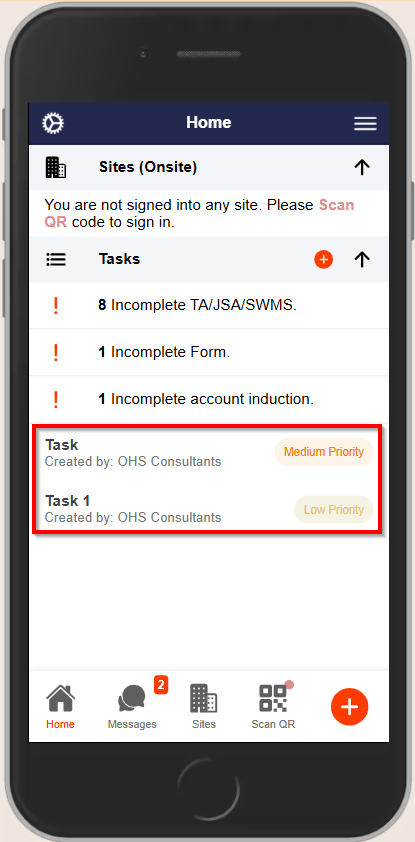
- On the Home Screen, locate and tap on the assigned task to open its details.
Step 3: 📝 Add Notes
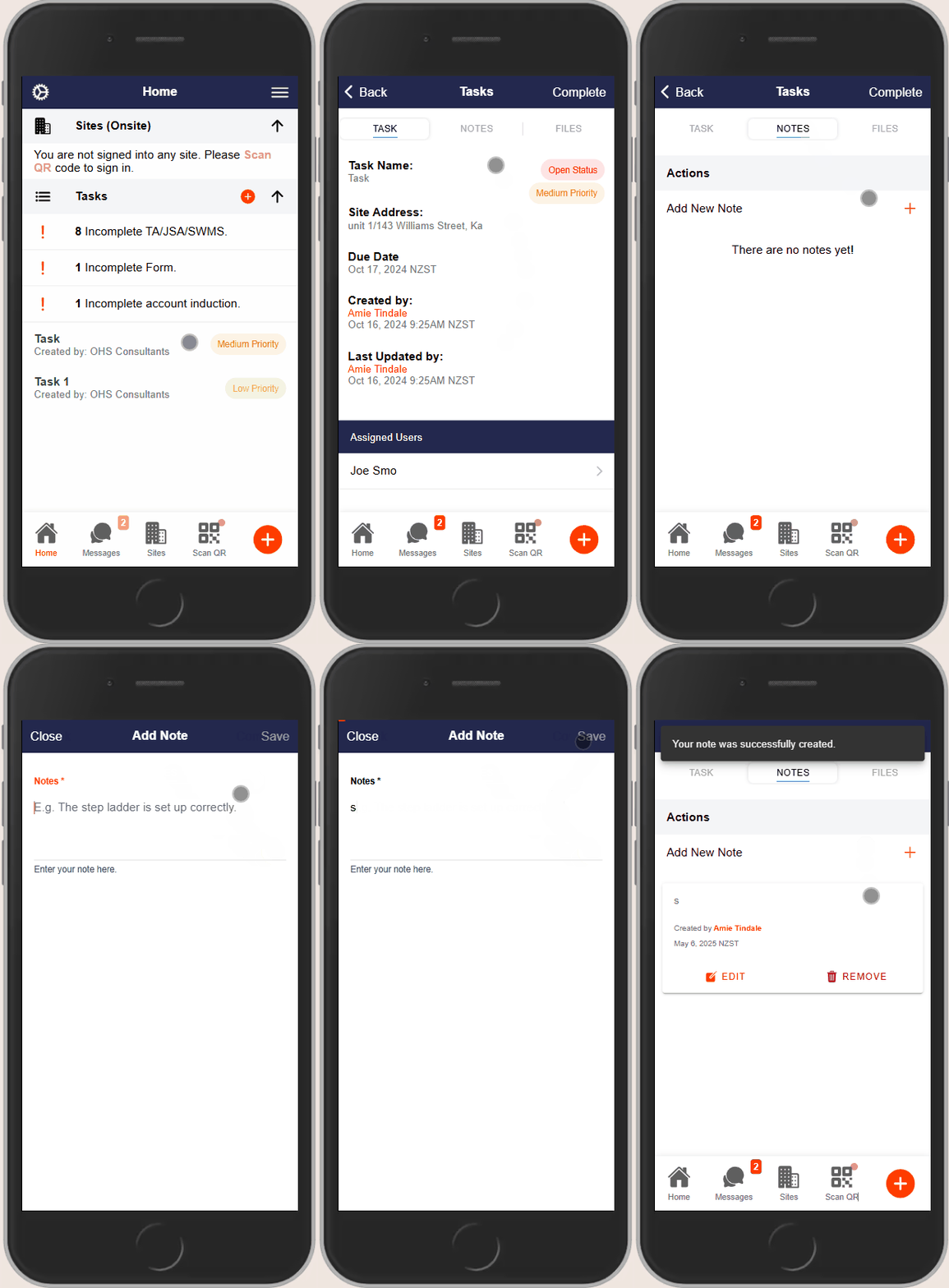
- Within the task details, tap the Notes tab at the top of the screen.
- Tap the + button to add a new note.
- Enter your note and tap Save to record it.
Step 4: 📎 Attach Files or Photos
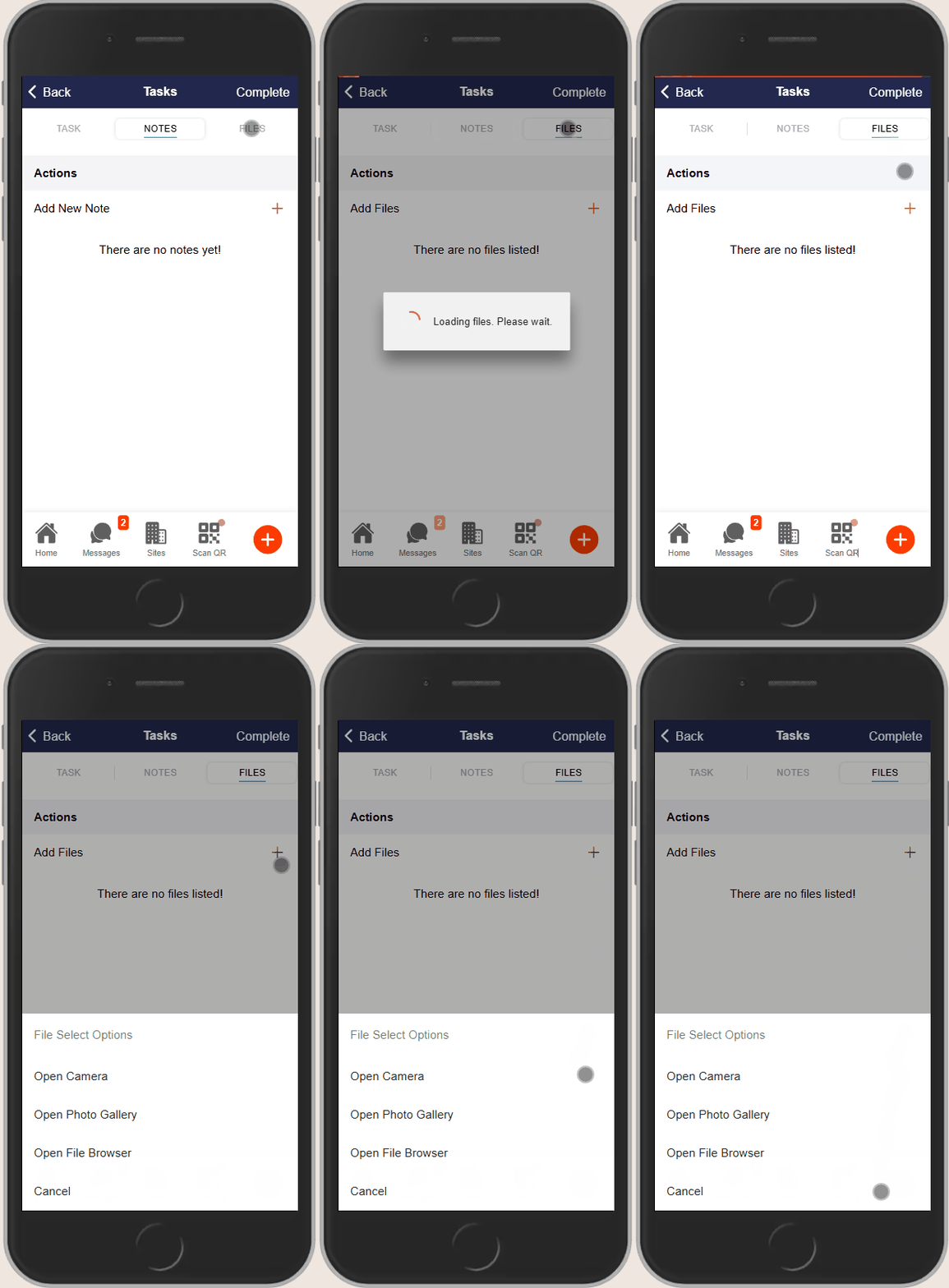
- Navigate to the Files tab within the task.
- Tap the + button to add a file.
- Choose to either:
- Take a photo using your device’s camera.
- Select a photo from your gallery.
- Browse files to attach documents or other files.
Step 5: ✅ Complete the Task
- Once all necessary notes and files have been added, tap the Complete tab at the top of the screen.
- A confirmation prompt will appear:
- Tap Yes to confirm completion and close the task.
- Tap Cancel to return to the task without closing it.
Upon completion, the task will disappear from your Home Screen, and administrators will be notified via email.
Step 6: 📂 View Your Tasks
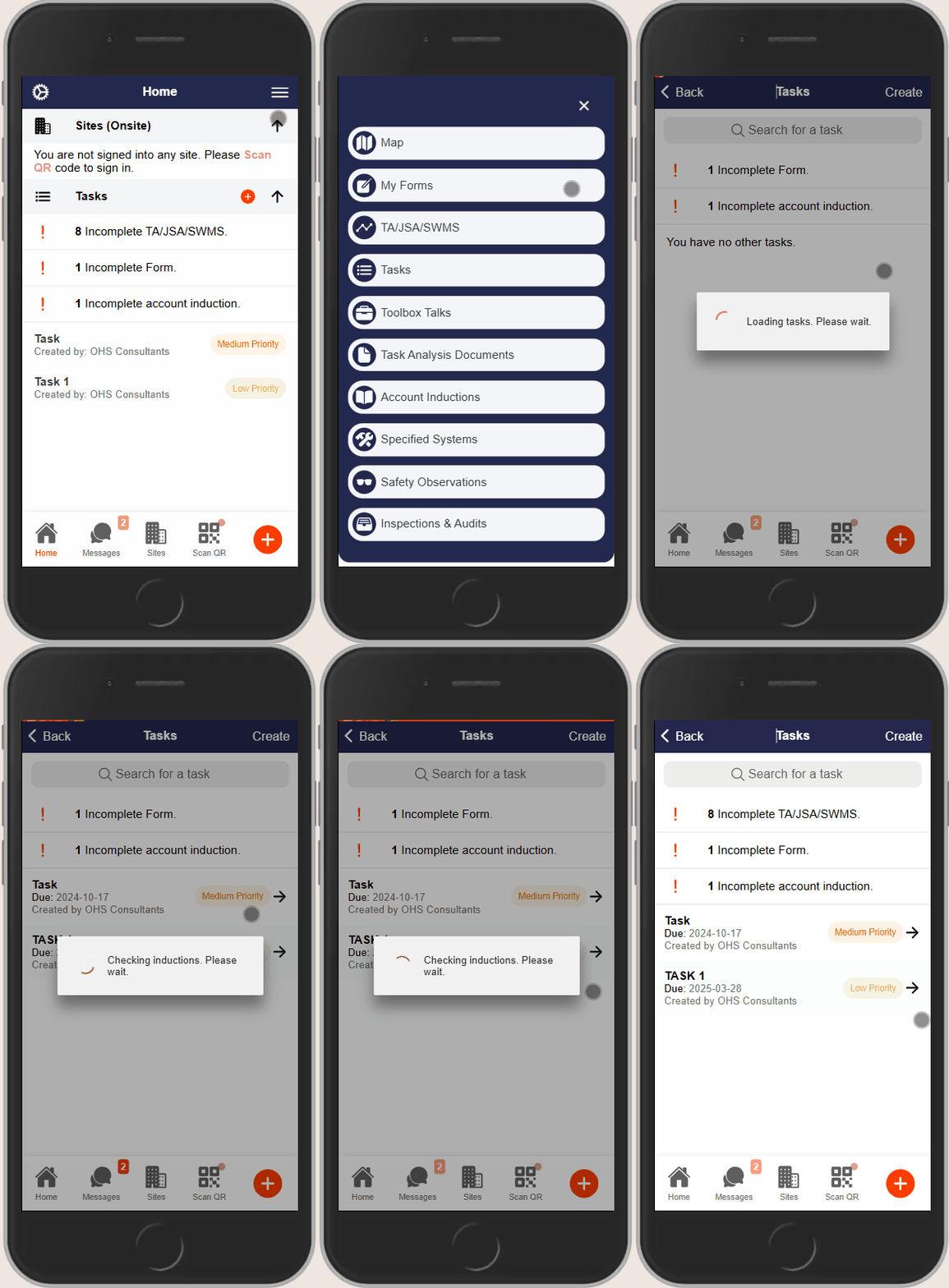
To view all tasks assigned to you:
- Tap the hamburger menu (☰) in the top-right corner of the Home Screen.
- Select Tasks from the menu.
- Here, you can see all tasks, including those completed, in progress, or assigned.
❓ Troubleshooting
- Task Not Appearing on Home Screen: Ensure you have received the assignment notification and that your app is updated to the latest version.
- Unable to Add Notes or Files: Check your device’s permissions to ensure the app has access to your camera, gallery, and storage.
- Task Completion Not Reflecting: Verify your internet connection and ensure the task was properly submitted. If issues persist, contact support.
📞 Need Help?
For further assistance:
- 📧 Email: support@take5connect.com
- 📞 Phone (NZ): 0800 582 535