How Can We Help?
-
Account
- 👨💼 How to Change Your Username, Email, Password and Employer
- 🧑💼Download the Mobile App (Google Play Store and Apple App Store)
- 🧑💼 How to Enable or Disable Automatic Sign-Outs for Your Sites
- 🧑💼 How to Make Someone Your Main Contact
- 🧑💼 How to Add a Company Logo to Your Account
- 🧑💼 How to Enable or Disable Notifications
-
Charts & Graphs
- 📊 How to Create and Manage Dashboard Charts
- 📊 How to Create and Manage Charts & Graphs
- 📊 How to Access and Manage Sites Charts & Graphs
- 📊 How to Access and Manage Account Inductions Charts & Graphs
- 📊 How to Access and Manage Incidents Charts & Graphs
- 📊 How to Access and Manage Tasks Charts & Graphs
- 📊 How to Access and Manage Safety Observation Charts & Graphs
- 📊 How to Access and Manage Form Charts & Graphs
- 📊 How to Access and Manage Hazards & Risks Charts & Graphs
- 📊 How to Access and Manage Audits & Inspections Charts & Graphs
- 📊 How to Access and Manage Toolbox Talk Charts & Graphs
- 📊 How to Access and Manage Site Activity Charts & Graphs
- 📊 Understanding Chart Descriptions
- 📊 How to Access and Manage Messages Charts & Graphs
-
Contractors
-
Digital Signatures
-
Employees
- 👷♀️How to Add Employees as Managers of Sites
- 👷♀️How to Add and Manage Employees
- 👷♀️How to Import and Export Employee Details
- 👷♀️How to Add Training & Competency Details and Certificates to an Employee's Profile
- 👷♀️Unlocking a User After Multiple Failed Login Attempts
- 👷♀️Accessing User Profiles
-
Form Builder
- 📋 How to Use Form Categories
- 📋 How to Set Up Reoccurring Forms
- 📋 How to View and Link Forms to Sites
- 📋 All About Form Settings
- 📋 Setting Up Form Notifications
- 📋 Exporting Forms
- 📋 Assigning Forms
- 📋 Creating Forms and Inductions
- 📋 Approving, Rejecting Form Responses, and Viewing Audit Logs
- 📋 Adding Images and Videos into Forms and Inductions
- 📋 Viewing, Assigning, and Unassigning Forms
- 📋 Adding Display Conditions to Forms
- 📋Completing Forms and selecting Form Templates
- 📋How Forms are typically processed
-
Hazards/Risks
-
Incidents
-
Inductions
-
Inspections/Audits
-
Messages
-
My Pre-Qualifications
-
TA/JSA/SWMS
-
Tasks
-
Templates
-
Reporting
-
Sites and Subsites
-
Safety Observations
-
Take5™️ Connect Mobile App
- 📱 How to Report a Hazard or Risk via the Mobile App
- 📱 How to Enable or Disable GPS Tracking in the Mobile App
- 📱 How to Add Training/Competency Documents to Your Profile in the Mobile App
- 📱 How to Enable and Disable Notifications in the Mobile App
- 📱 How to Access the Admin Menu in the Mobile App
- 📱 How to Add Multiple Files in the Mobile App
- 📱 How to Sign Into the Mobile App
- 📱 How to Create a Toolbox Talk in the Mobile App
- 📱 How to Access Your Inductions in the Mobile App
- 📱 How to Complete a Task Assigned to You in the Mobile App
- 📱 How to Create a Task in the Mobile App
- 📱 How to Complete Approved Work from a Form in the Mobile App
- 📱 How to Select a Form Template in the Mobile App
- 📱 How to Complete Forms via the Mobile App
- 📱 How to Report a Safety Observation in the Mobile App
- 📱 How to Report an Incident through the Mobile App
- 📱 How to Conduct an Audit through the Mobile App
- 📱 How to Use Geofencing in the Mobile App
- 📱 Geofencing: Philosophy of Operations in Take5™️ Connect
- 📱 Troubleshooting GPS Issues in the Mobile App
- 📱 How to Sign Into a Site via QR Codes in the Mobile App
- 📱 Why Take5™️ Connect Requires Background Location Access
- 📱 How to Delete Your User Profile in the Mobile App
- 📱 How to Update Your Login Credentials and Employer in the Mobile App
- 📱 How to Download and Set Up the Take5™️Connect Mobile App
- 📱 How to Complete the Daily Site Hazard & Noticeboard Message Acknowledgment
- 📱 How to Manually Sign Out of a Site in Mobile App
- 📱How to Create a Toolbox Talk Using Templates in Take5™ Connect (via Mobile App)
- 📱 How to Add Snippets to a Toolbox Talk in the Take5™ Connect Mobile App
- Show Remaining Articles (14) Collapse Articles
-
Sites
- 🏢 How to Create a Site
- 🏢 How to Clone a Site
- 🏢 How to List, Remove or Archive Sites
- 🏢 Emergency Evacuation Plans
- 🏢 How to Add a Noticeboard Message to a Site
- 🏢 How to Add & Remove a Document to a Site
- 🏢 Managing Site Toolbox Talks
- 🏢 How to Create, Update, Print, or Delete QR Codes
- 🏢 How to Claim a QR Code
- 🏢 How to Scan a QR Code Using Your Phone Camera
- 🏢 How to Create a QR Code for a Site or Multiple Sites
- 🏢 How to Manage Task Analysis Documents for Existing Sites
-
Safety Plans
-
Notifications
< All Topics
Print
🧑💼 How to Enable or Disable Notifications
PostedOctober 14, 2024
UpdatedJune 13, 2025
Byshawn@take5connect.com
Managing notifications in Take5™ Connect helps you stay informed without being overwhelmed. This guide will show you how to enable or disable notifications based on your preferences. 👇
Step 1: 🧑💼 Access Your Account Settings
- Once logged in, click on your ⚙️ icon at the top-right corner of the dashboard.
- From the dropdown menu, select Configuration.
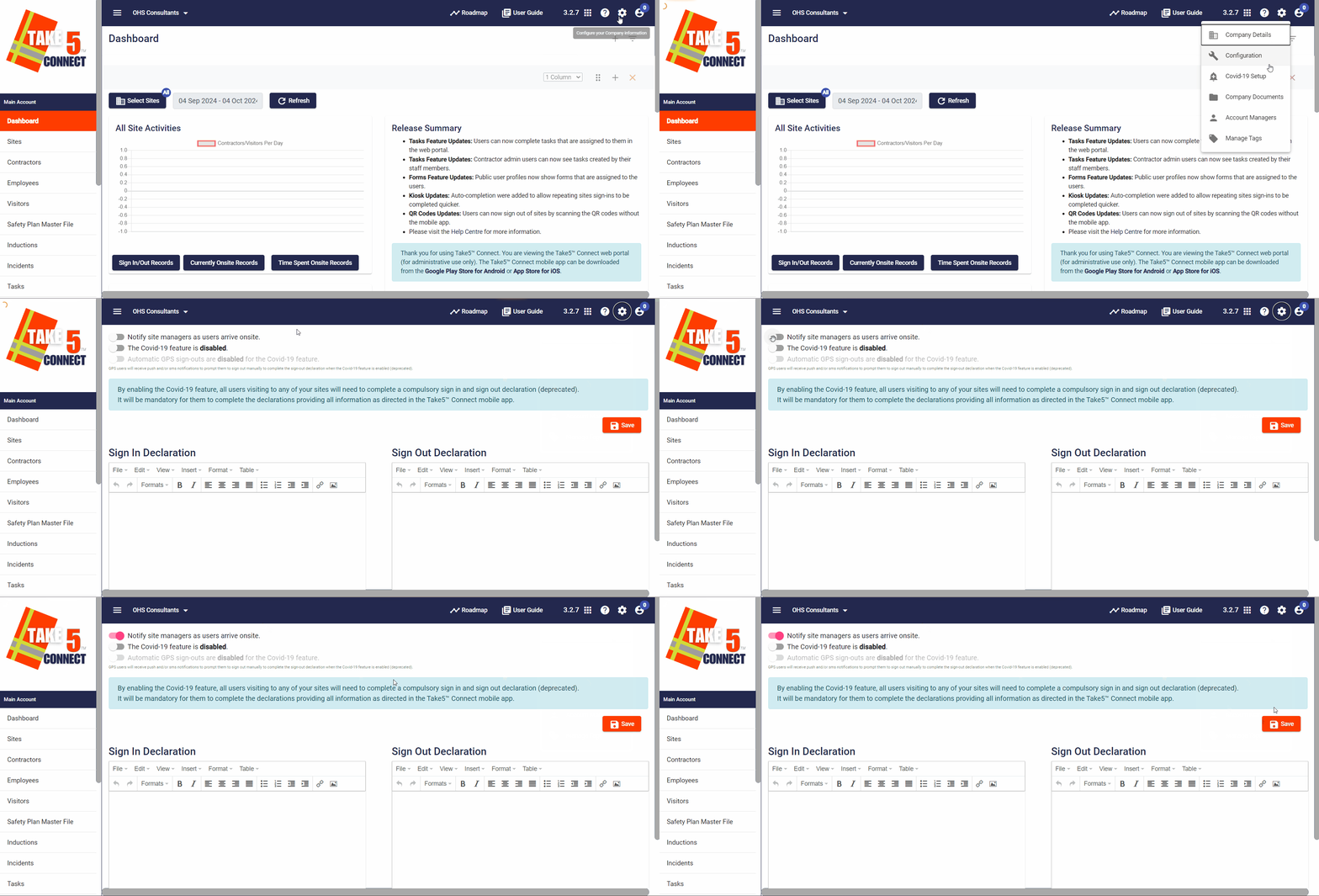
Step 2: 🔔 Navigate to Notification Settings
- In the Account Configuration menu, locate the Notifications section.
- Here there will be a list of options around notification preferences.
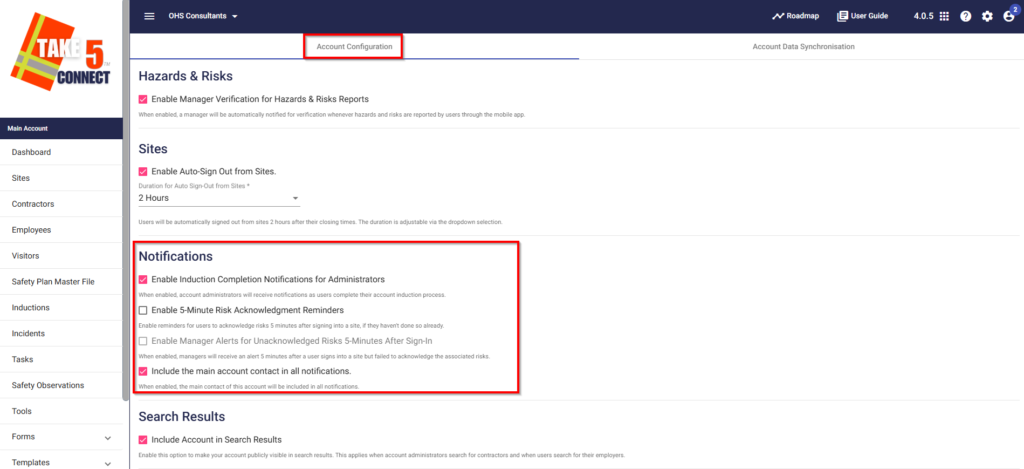
Step 3: 📲 Enable or Disable Notifications
- You will see various types of notifications such as Email Notifications, SMS Notifications, and Push Notifications.
- Toggle the switches to enable or disable notifications based on your preference for each type of alert.
Step 4: 💾 Save Your Changes
- Once you have adjusted your notification preferences, click the Save button to apply your new settings.
- A confirmation message will appear indicating your notification settings have been updated.
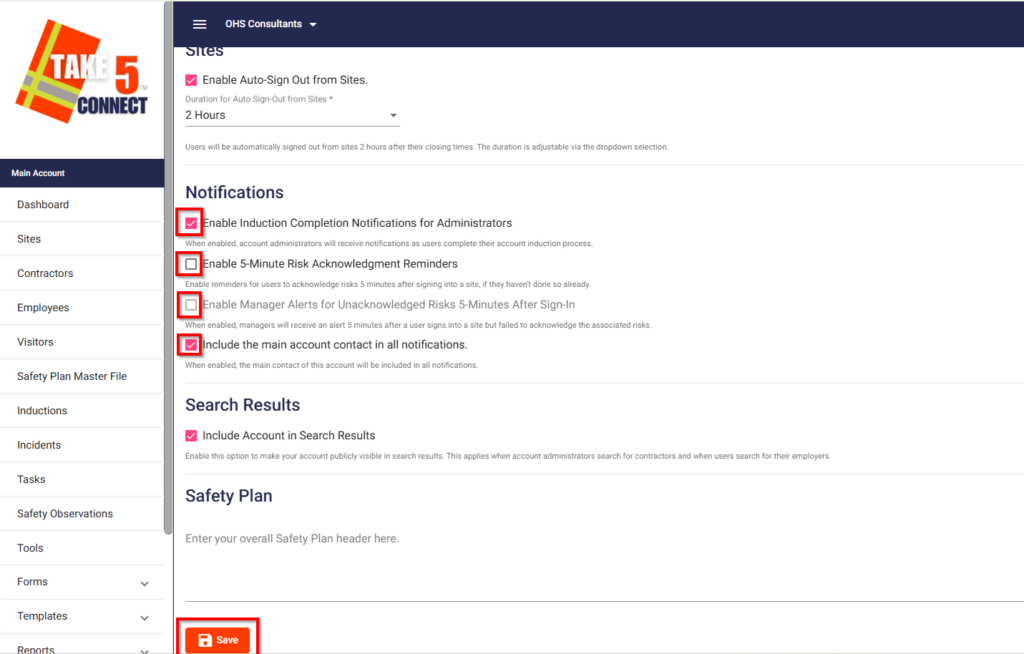
Hazard/Risk Daily Acknowledgement Reminders/Notifications
You can turn on and off at Account Level notifications to be sent to users signing into a Project/Site if they have NOT completed the daily hazard/risk acknowledgement. These notifications will be sent 5 minutes after they have signed into the Project/Site via push notification and email in the same section.
❓ Troubleshooting
- If you are not receiving notifications after enabling them, check your spam folder or ensure that your phone number or email address is up to date.
- If notifications are too frequent, consider adjusting your settings or disabling specific notifications.
📞 Need Help?
If you need further assistance, please contact our support team at:
📧 Email: support@take5connect.com
📞 Phone (NZ): 0800 582 535