
How Can We Help?
🔔 Notification Features
Take5™️ Connect offers a customizable notifications system, allowing you to tailor alerts based on roles, sites, and specific events. This ensures that employees receive only the most relevant information, enhancing efficiency and focus.
Step 1: ⚙️ Access Notification Settings
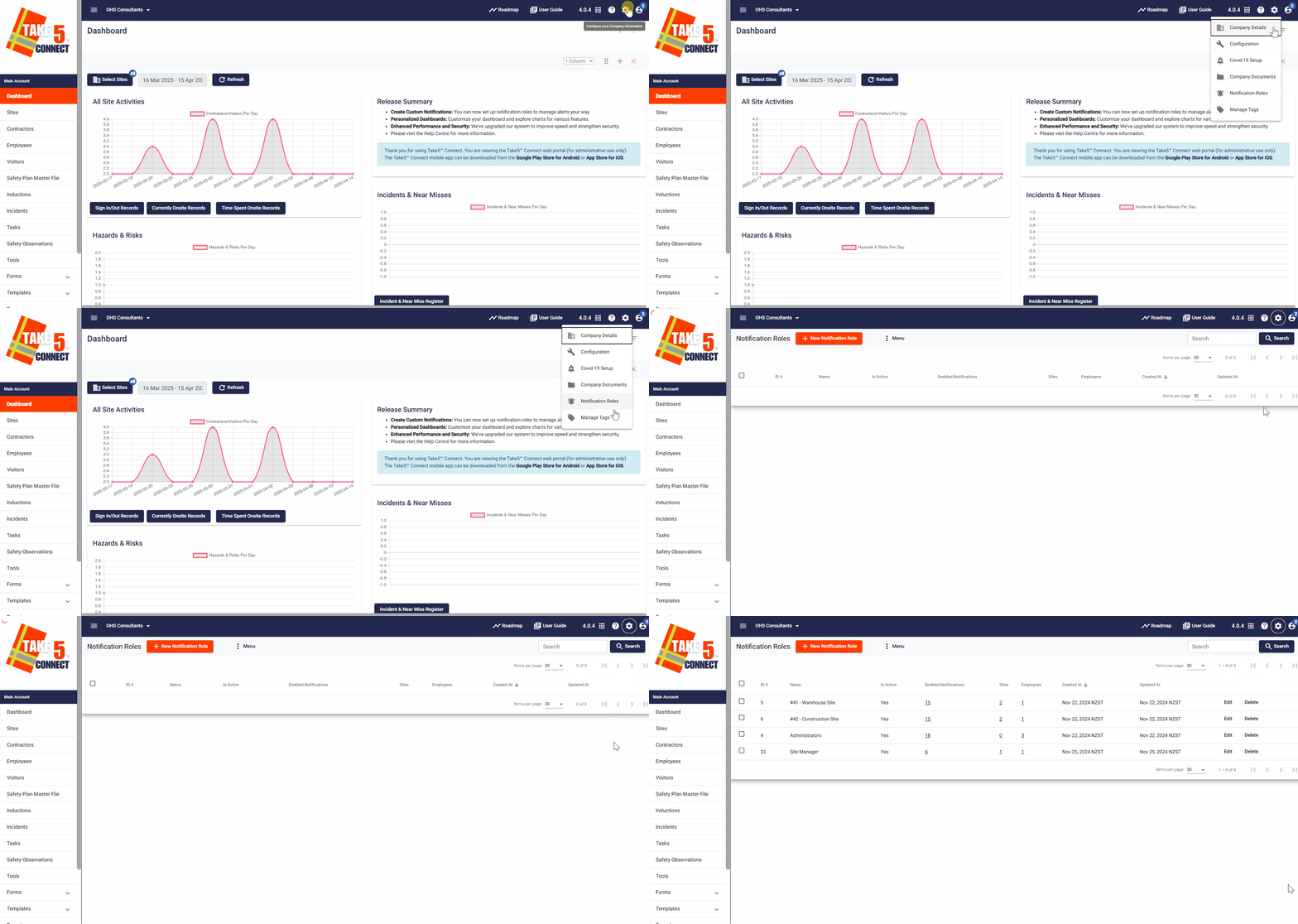
- Once logged in, click on your Settings icon in the top-right corner.
- From the dropdown menu, select Notification Roles
Step 2: 🛠️ Customize Notification Roles
In the Notification Roles section, you can:
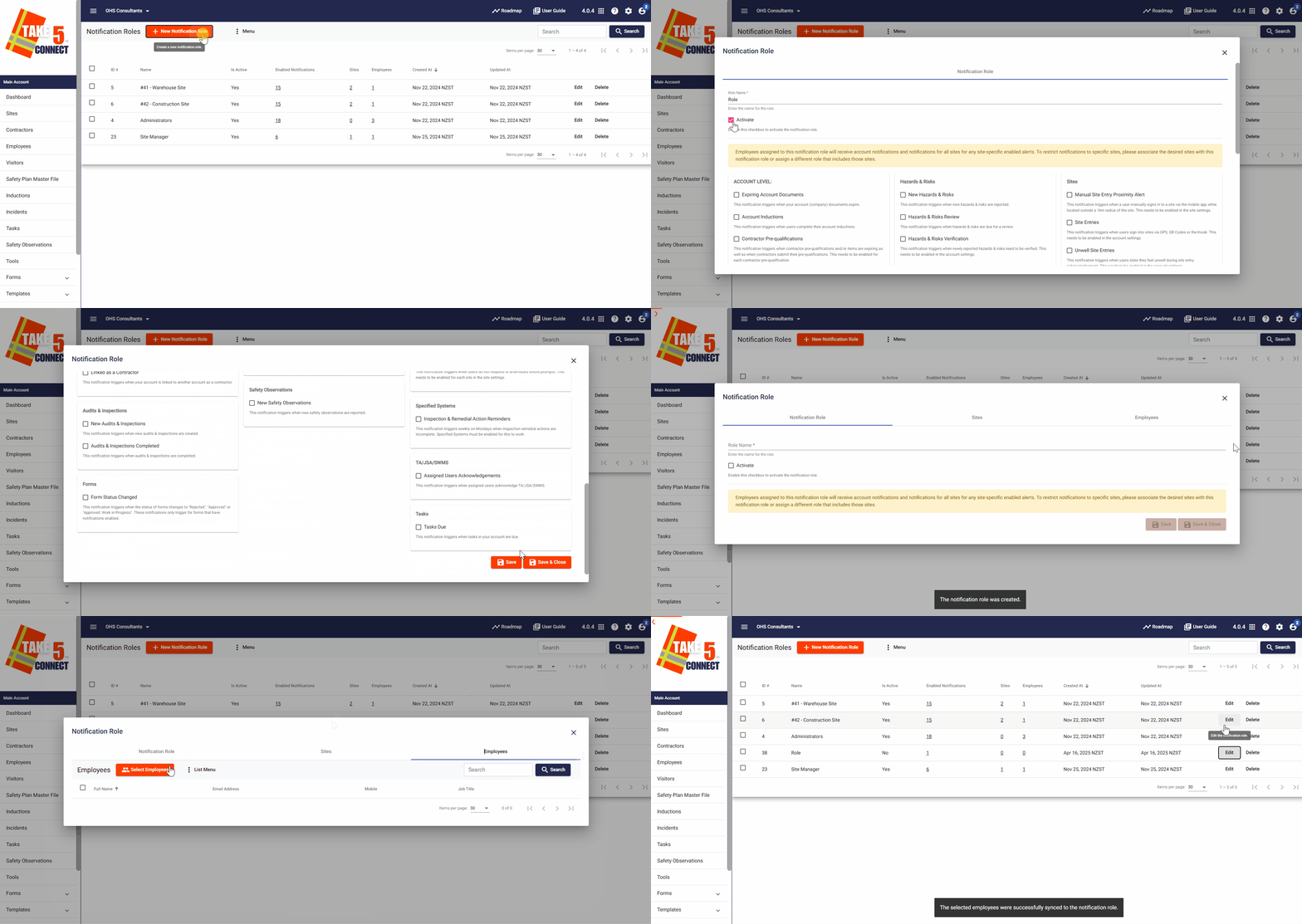
- Create New Roles: Click on + Add Role, name the role, and specify the associated permissions.
- Enable or Disable Roles: Activate or deactivate roles as needed to control notification flow.
- Assign Roles to Employees: Link roles to specific employees after creating the Notification Role and selecting edit then Employees.
Step 3: 📍 Associate Notifications with Sites
To ensure notifications are relevant to specific locations:
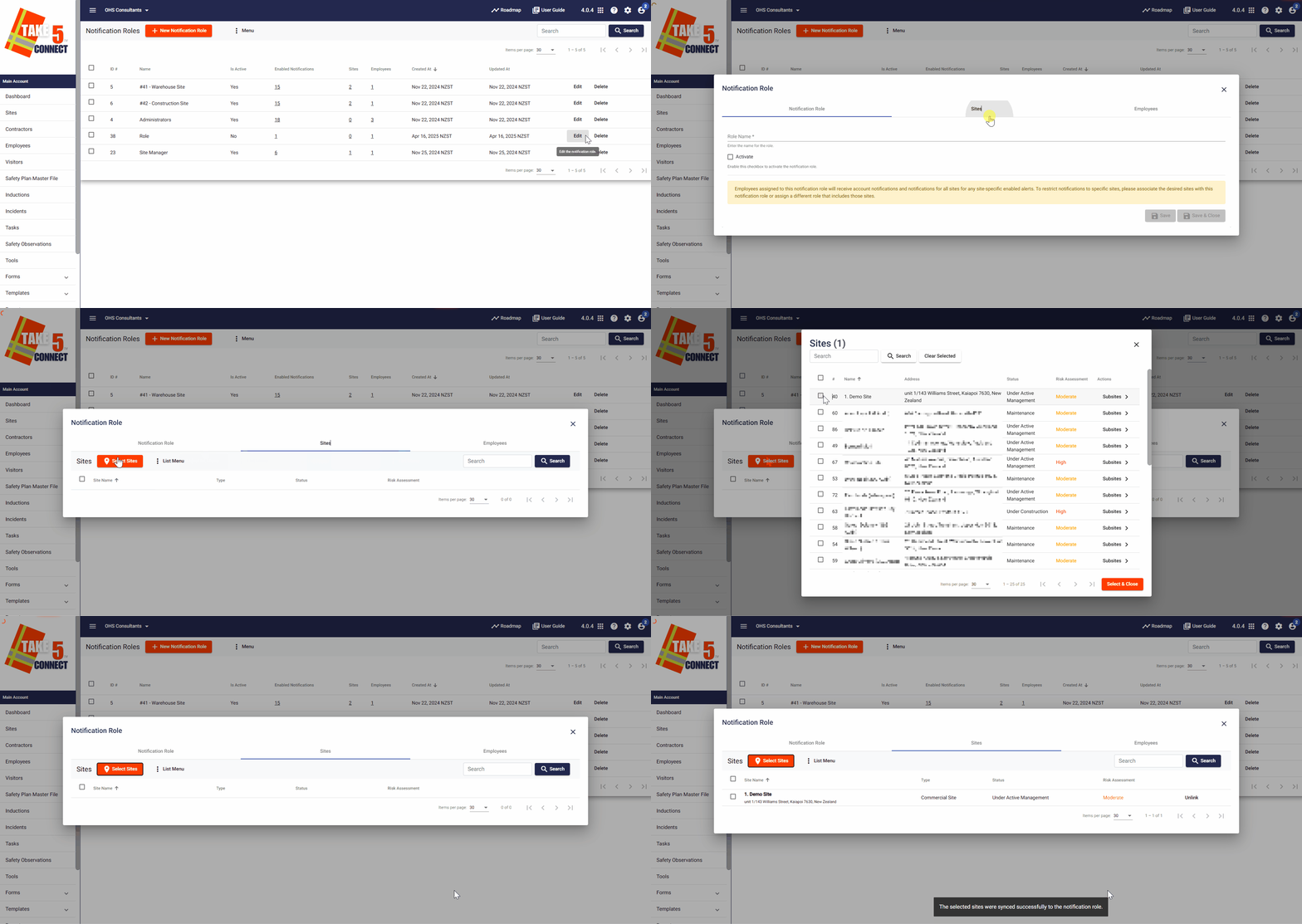
- Click Edit next to the Notification Role
- And navigate to the Sites tab along the top menu
- Select the site you wish to associate with this notification
- Then click Select & Close to confirm
Step 4: 🔔 Review Available Notifications
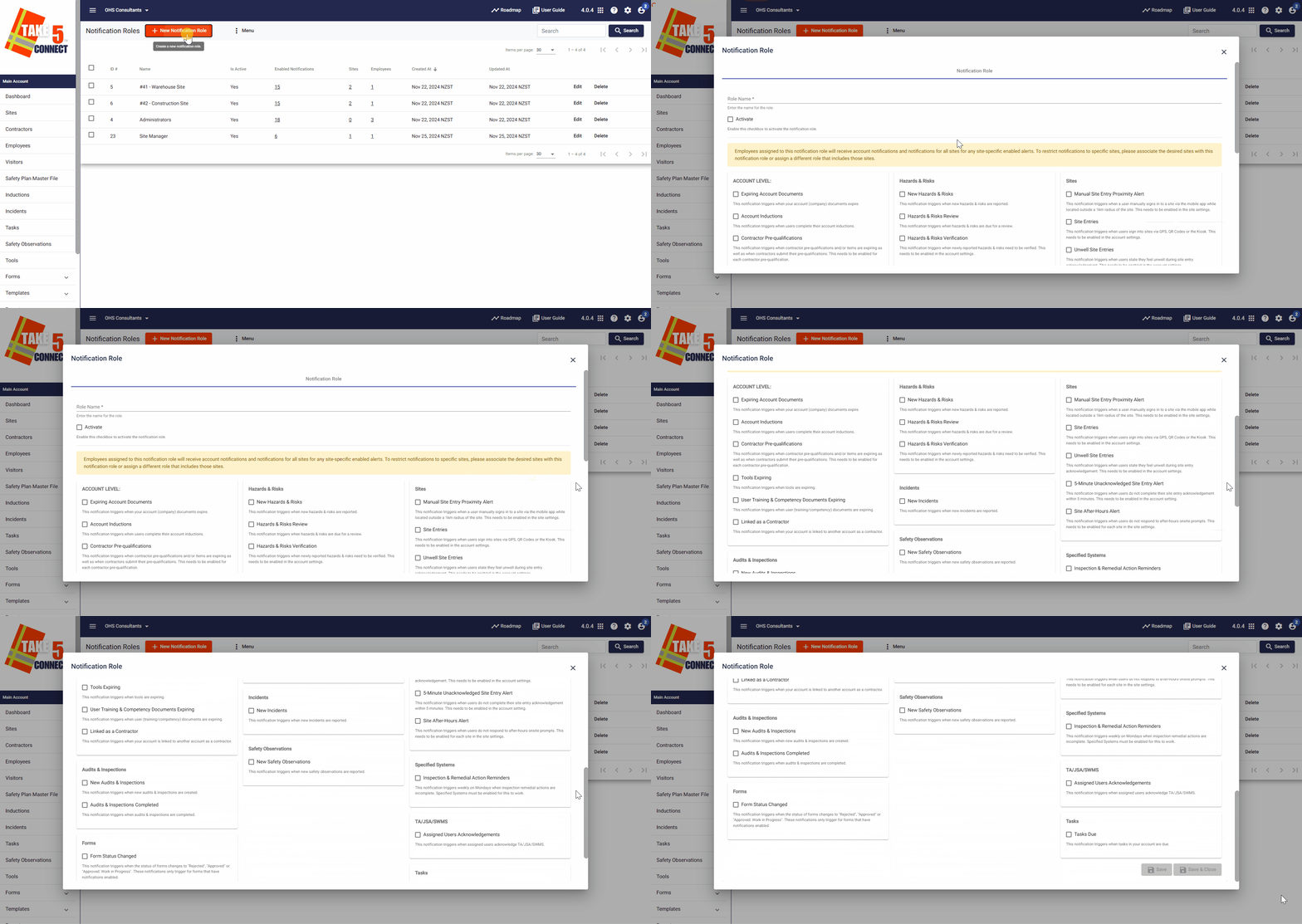
Take5™️ Connect offers a variety of notifications, including:
- Account Documents: Alerts for expiring company documents.
- Account Inductions: Notifications when users complete their account inductions.
- Audits & Inspections: Updates on new or completed audits and inspections.
- Contractor Pre-Qualifications: Reminders for expiring contractor pre-qualifications.
- Contractor Linkages: Notifications when your account is linked to another as a contractor.
- Forms: Status changes for forms (e.g., approved, rejected).
❓ Troubleshooting
- Not Receiving Expected Notifications: Ensure the relevant notification roles are assigned and active.
- Overwhelmed by Notifications: Review and adjust notification roles to reduce unnecessary alerts.
- Unable to Access Notification Settings: Verify your user permissions; contact an administrator if needed.
📞 Need Help?
If you need further assistance, please contact our support team at:
- 📧 Email: support@take5connect.com
- 📞 Phone (NZ): 0800 582 535