
How Can We Help?
🏢 How to Add a Noticeboard Message to a Site
The Noticeboard feature in Take5™️ Connect allows you to display important updates, instructions, or alerts directly to workers and visitors during the sign-in process. Adding a noticeboard message to a site ensures clear communication for safety, scheduling, or other critical information.
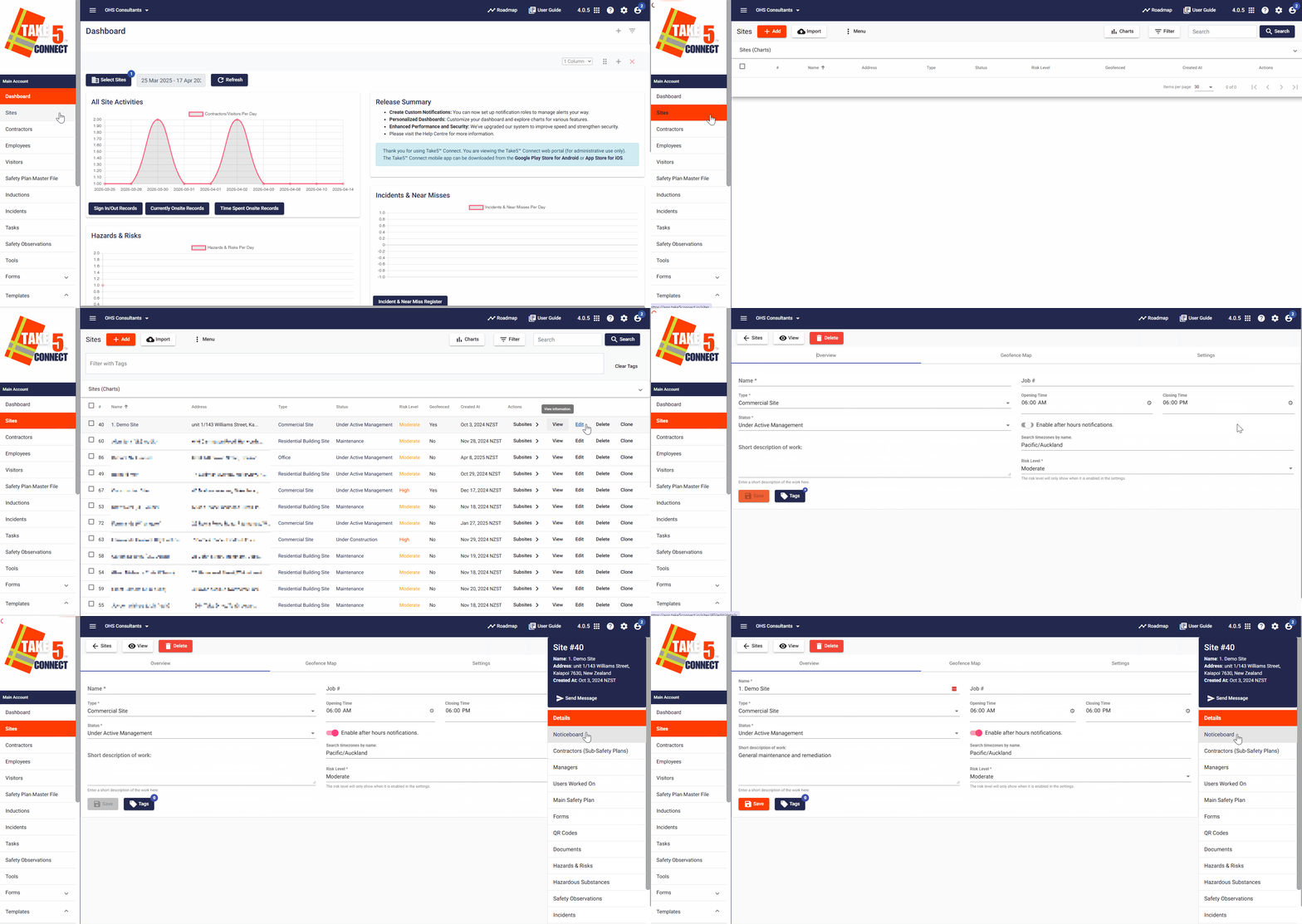
Step 1: 📍 Navigate to the Site You Want to Update
- From the left-hand menu, go to Sites.
- Click on Sites, then select Edit on the site where you’d like to add a noticeboard message.
Step 2: 🧾 Open the Noticeboard Tab
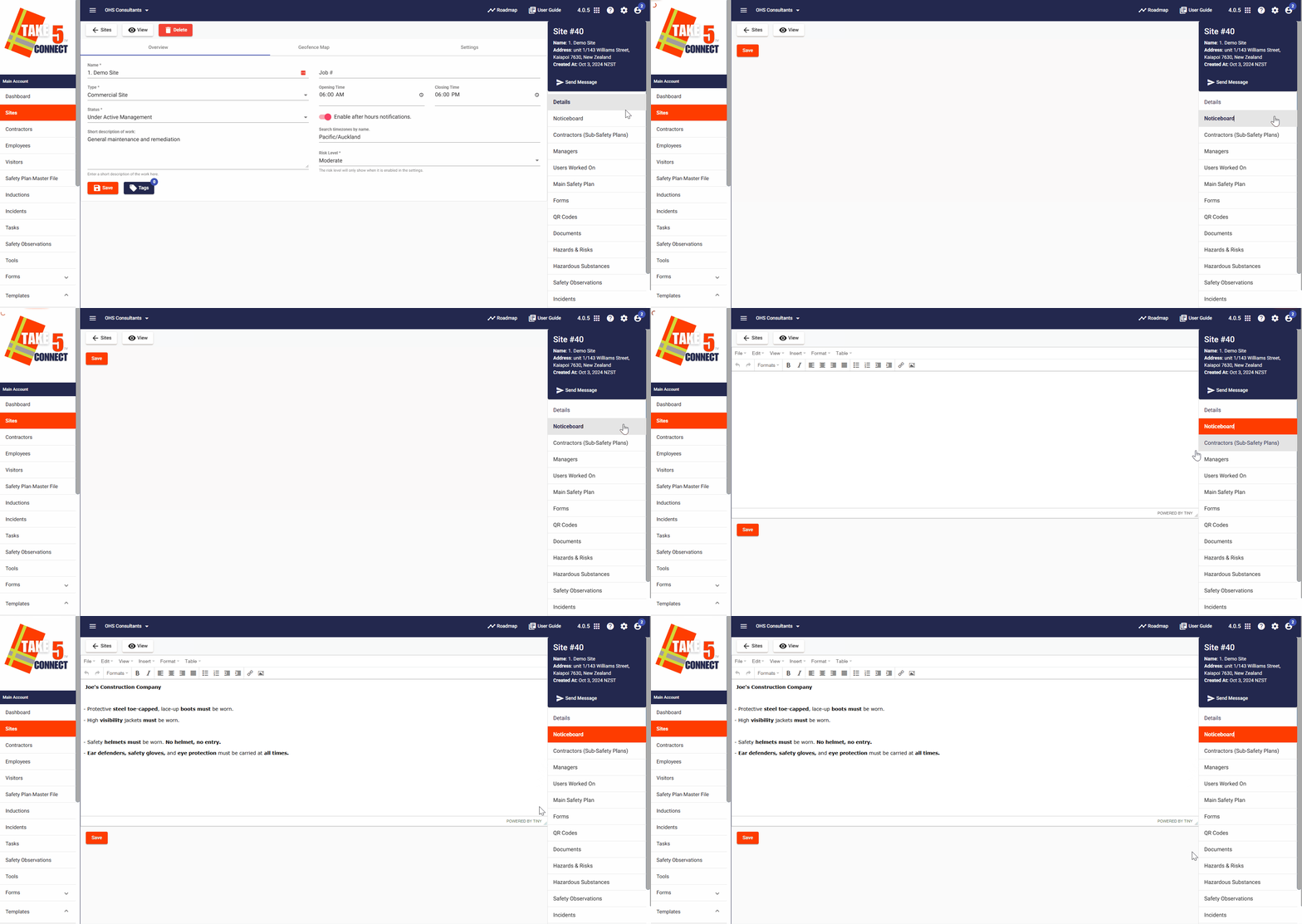
- Within the selected site’s profile, click on the Noticeboard tab.
- Here, you will see any existing noticeboard messages for that site.
Step 3: ➕ Add a New Noticeboard Message
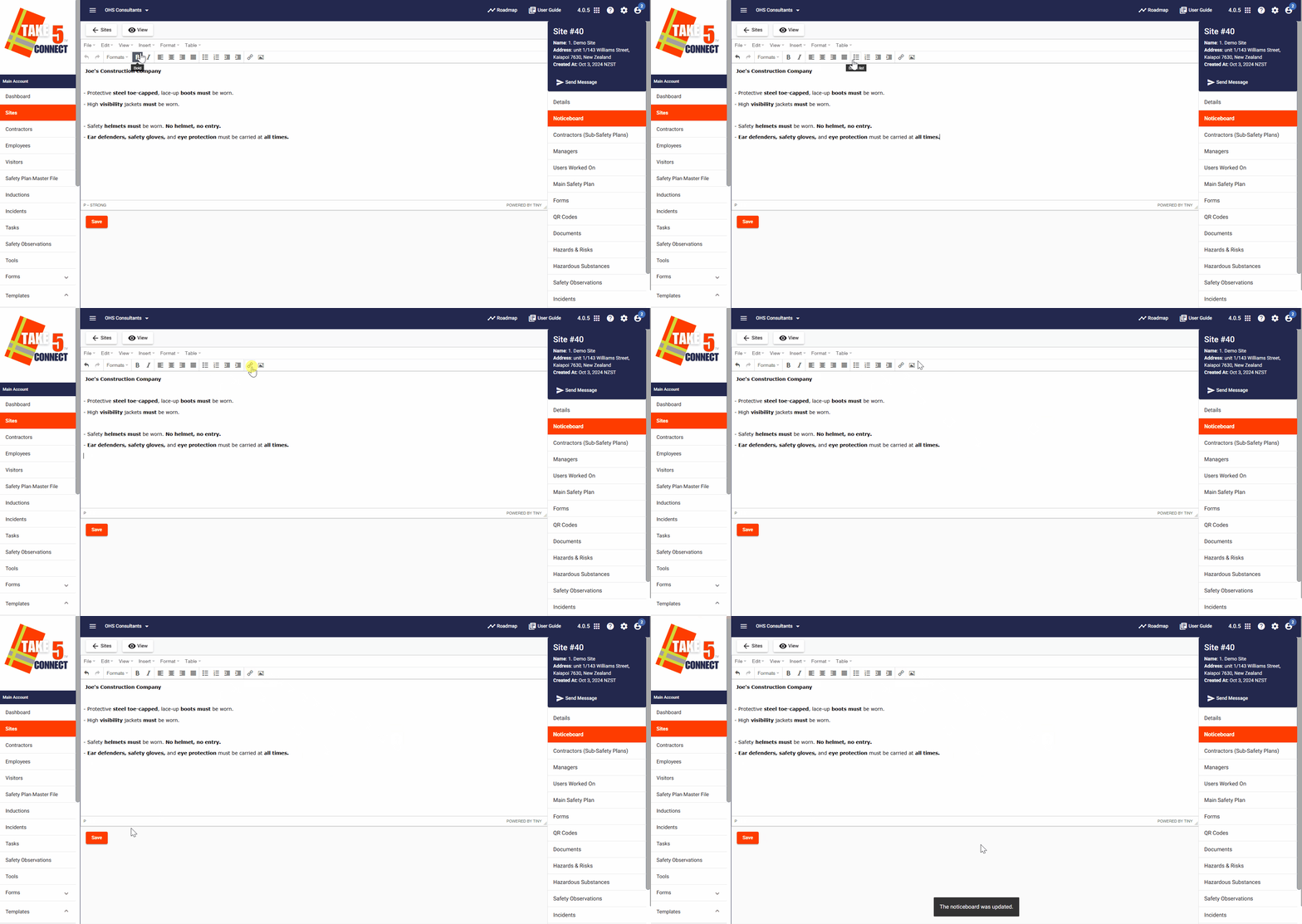
- The Noticeboard tab will open a free text dialog box.
- You can enter the following details:
- Title: A brief headline for the message.
- Message Content: The main body of your message — include any essential information such as safety alerts, project updates, or special instructions.
- There is also other features to use such as: Bold text, Bullet points, Links URLs or Insert Images.
- Click Save to publish the message to the site’s noticeboard.
Step 4: 👀 What Users See
Once saved, the noticeboard message will appear on the site’s Sign-In Kiosk, Mobile App, and QR Code Check-In experience.
- Users will be prompted to read and acknowledge the notice before completing sign-in.
- You can update or remove the message at any time from the Noticeboard tab.
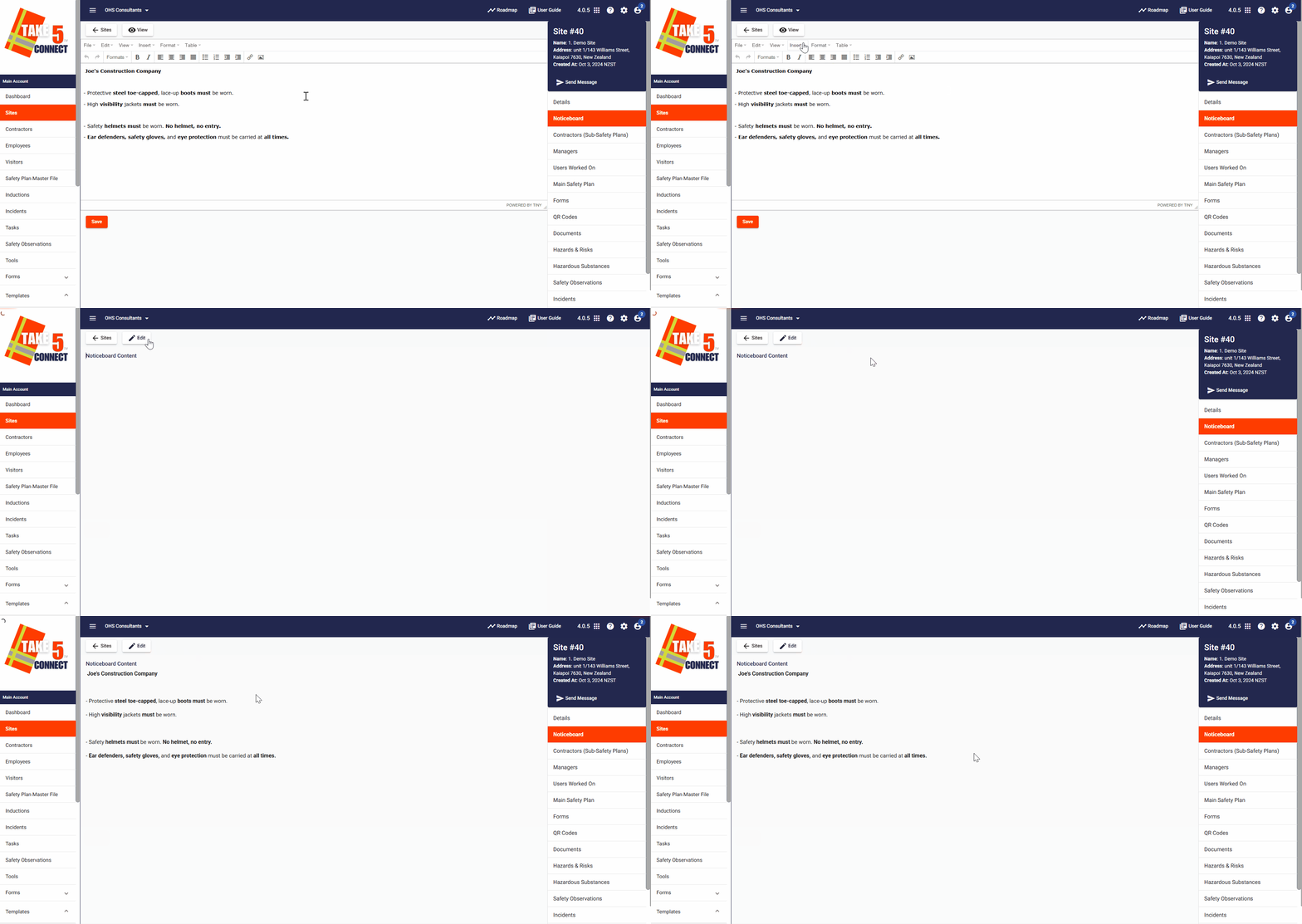
NOTE: Select View at the top of the screen after editing the Noticeboard message to see what the message will look like.
❓ Troubleshooting
- Message not showing? Check the message’s date range and ensure it’s within the current day.
- Kiosk not updating? Try refreshing the kiosk or mobile device display.
- Message formatting off? Stick to plain text or use simple formatting to ensure readability across devices.
📞 Need Help?
Our support team is ready to help if you have any issues managing your noticeboard messages:
- Email: support@take5connect.com
- Phone (NZ): 0800 582 535