
How Can We Help?
👨💼 How to Change Your Username, Email, Password and Employer
Updating your login credentials in Take5™️Connect ensures your account remains secure and up-to-date. This guide will walk you through the steps to change your username, email address, password, and employer details within the web portal.
Step 1: 🧭 Access Your Profile Settings
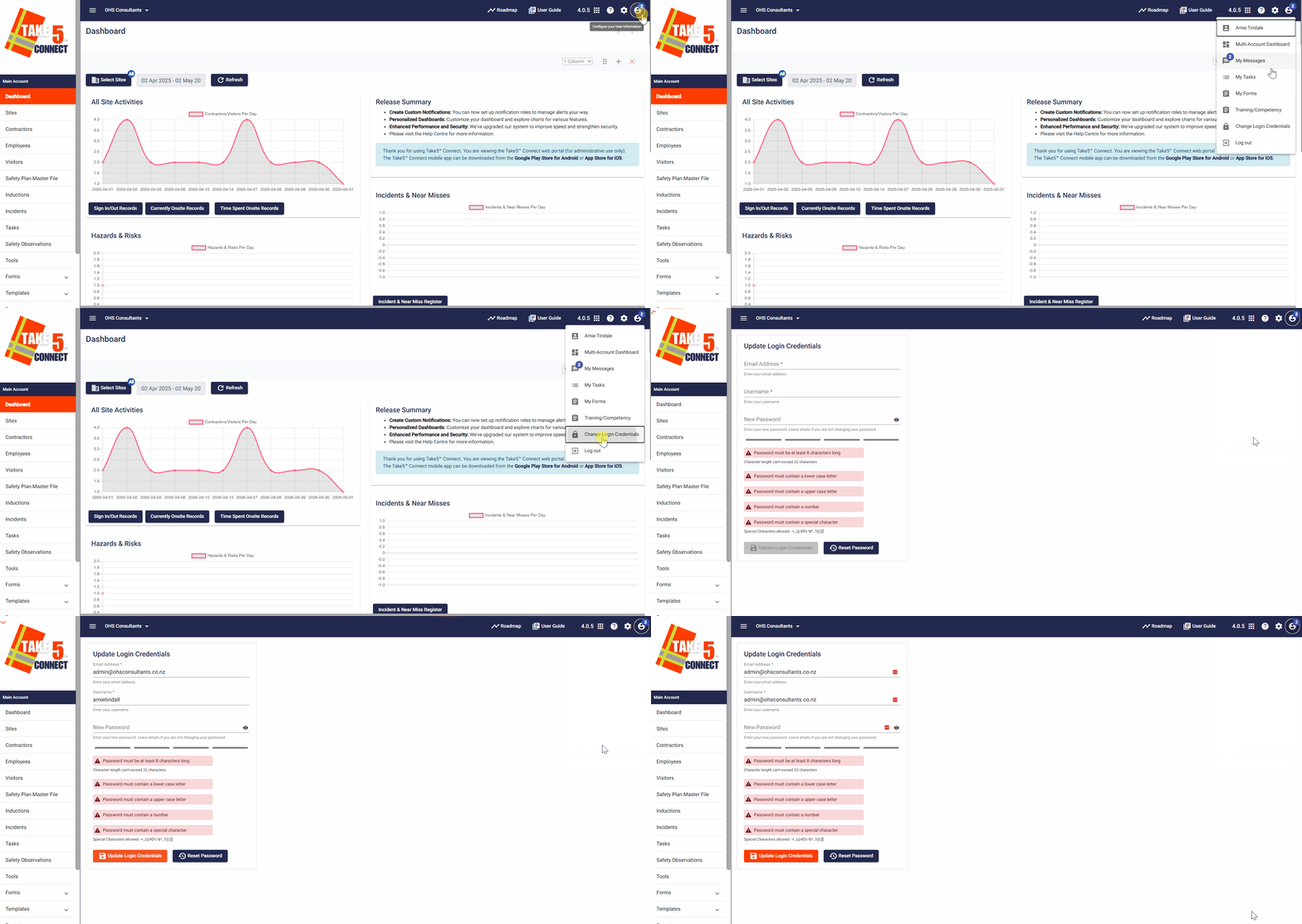
- From the main dashboard, click on your Profile icon located in the top-right corner of the screen.
- Select Change Login Credentials from the dropdown menu.
Step 2: ✏️ Update Your Username and/or Email Address
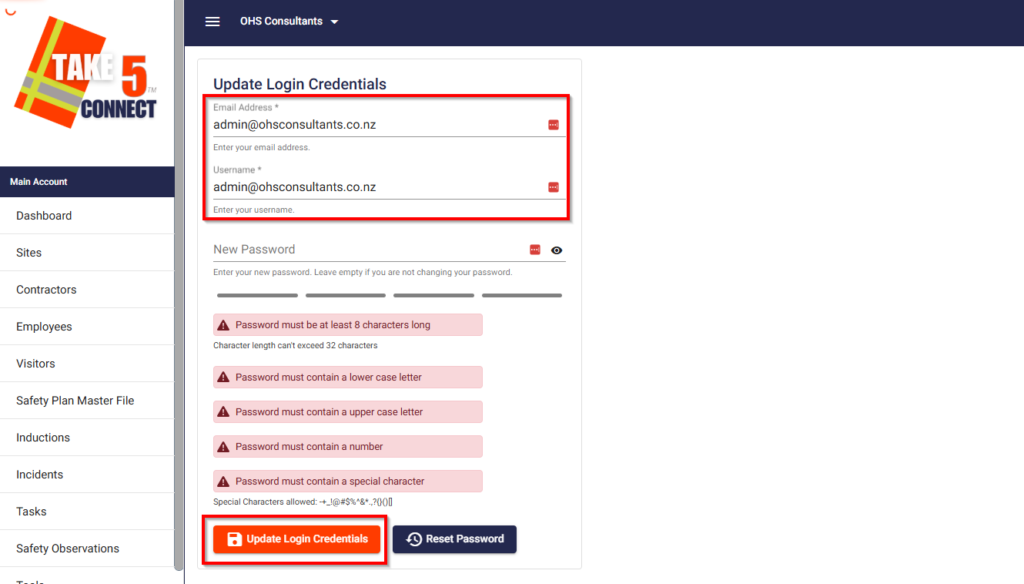
- In the Email Address and/or Username fields, enter your new login information.
- If the chosen username or email is already in use, you’ll be prompted to select a different one.
- Scroll down and click on Update Login Credentials.
- A confirmation dialog will appear; click Yes to proceed or No to cancel.
Step 3: 🔑 Change Your Password
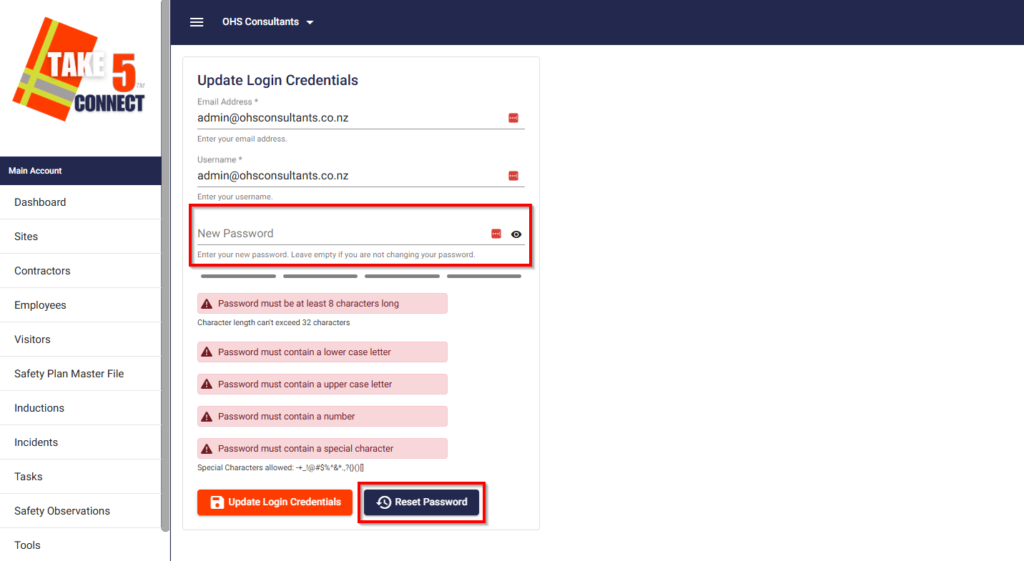
- While in the Change Login Credentials section, locate the Password field.
- Enter your new password in the New Password field and confirm it in the Reset Password field.
- Ensure both entries match; the Update Login Credentials button will turn bright orange when ready.
- Click on the Update Login Credentials button.
- A confirmation dialog will appear; click Yes to proceed or No to cancel.
Step 4: 🏢 Update Your Employer Details
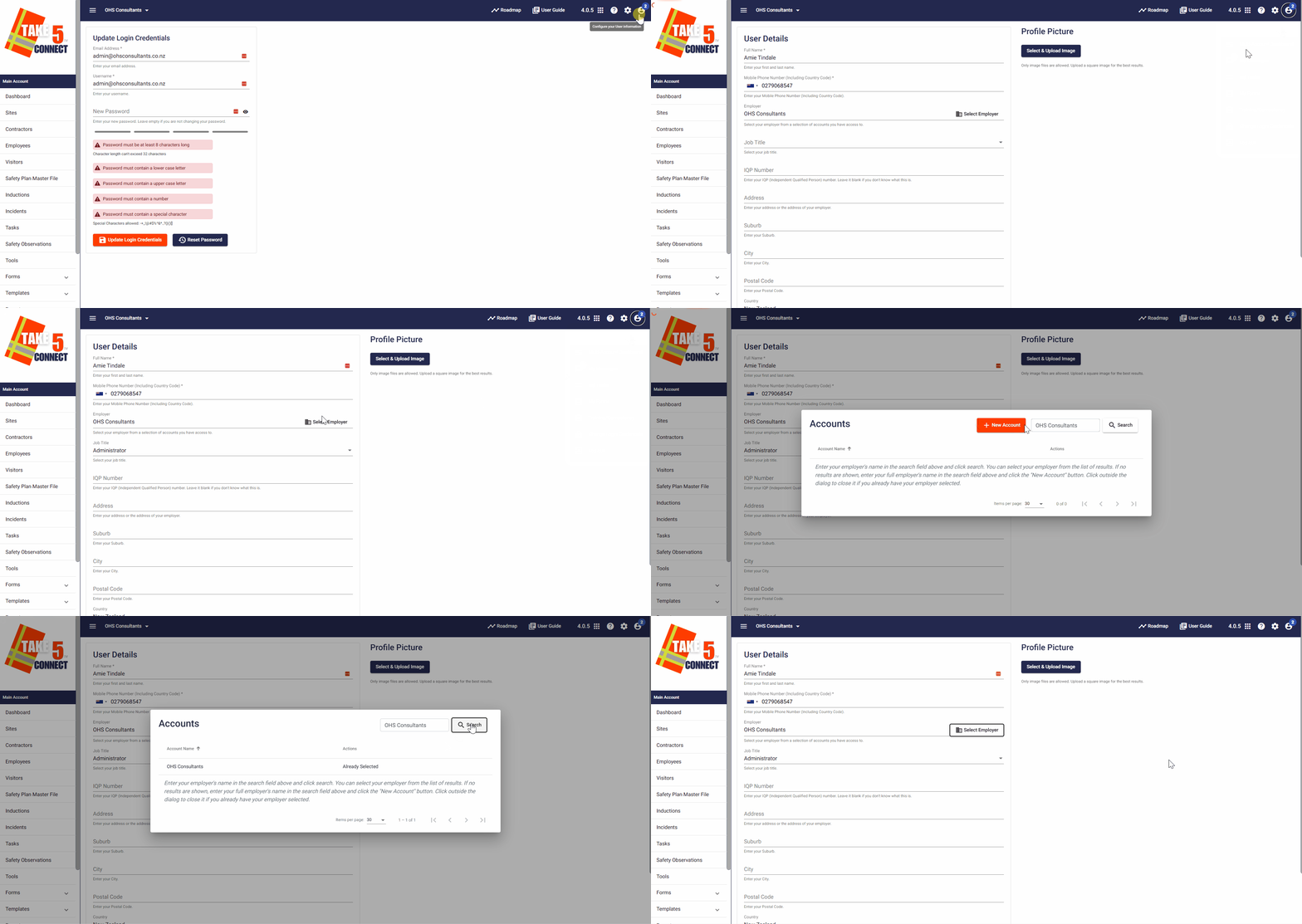
- Return to the Profile dropdown and select Your Name.
- In the dialog box that opens, click on Select Employer.
- Search for your new employer’s company name.
- If the company appears in the search results, click on it to select.
- If the company doesn’t appear, manually enter the full company name and save it.
- Click Save to confirm your new employer details.
❓ Troubleshooting
Unable to Update Username or Email?
- Ensure the new username or email address is not already in use by another account.
Password Update Button Not Active?
- Verify that both the New Password and New Password Confirmation fields match exactly.
Employer Not Found in Search?
- If your employer’s company doesn’t appear in the search results, manually enter the full company name and save it.
📞 Need Help?
If you need further assistance, please contact our support team:
📧 Email: support@take5connect.com
📞 Phone (NZ): 0800 582 535