
How Can We Help?
🏢 How to Add & Remove a Document to a Site
Attaching documents to specific sites in Take5™️ Connect helps ensure all workers, contractors, and visitors have access to the most up-to-date safety plans, procedures, and site-specific requirements. This guide will walk you through how to upload and manage documents within an individual site.
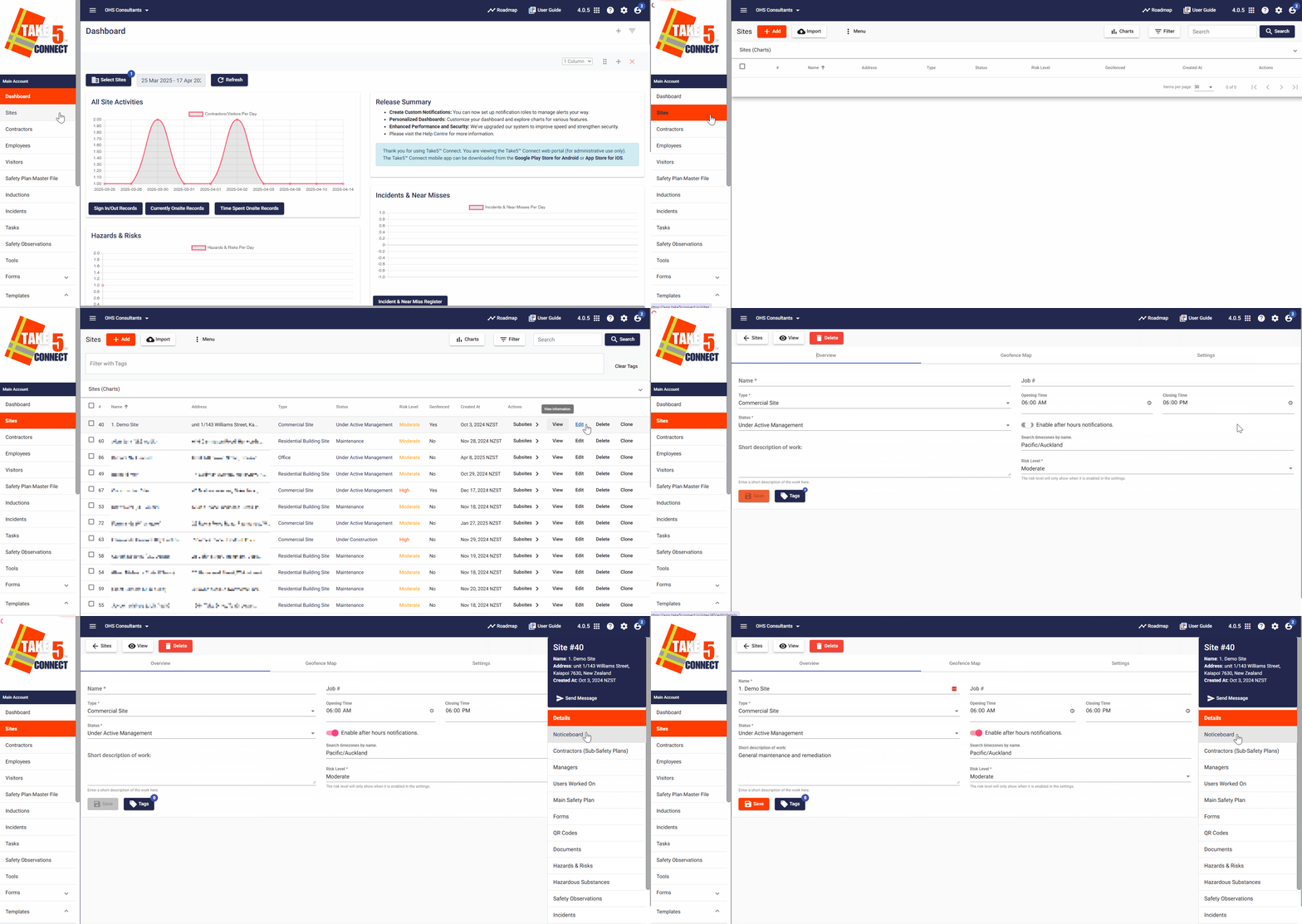
Step 1: 📍 Navigate to the Site
- From the main dashboard, go to Sites in the left-hand menu.
- Click Sites, then select the specific site you want to upload a document to.
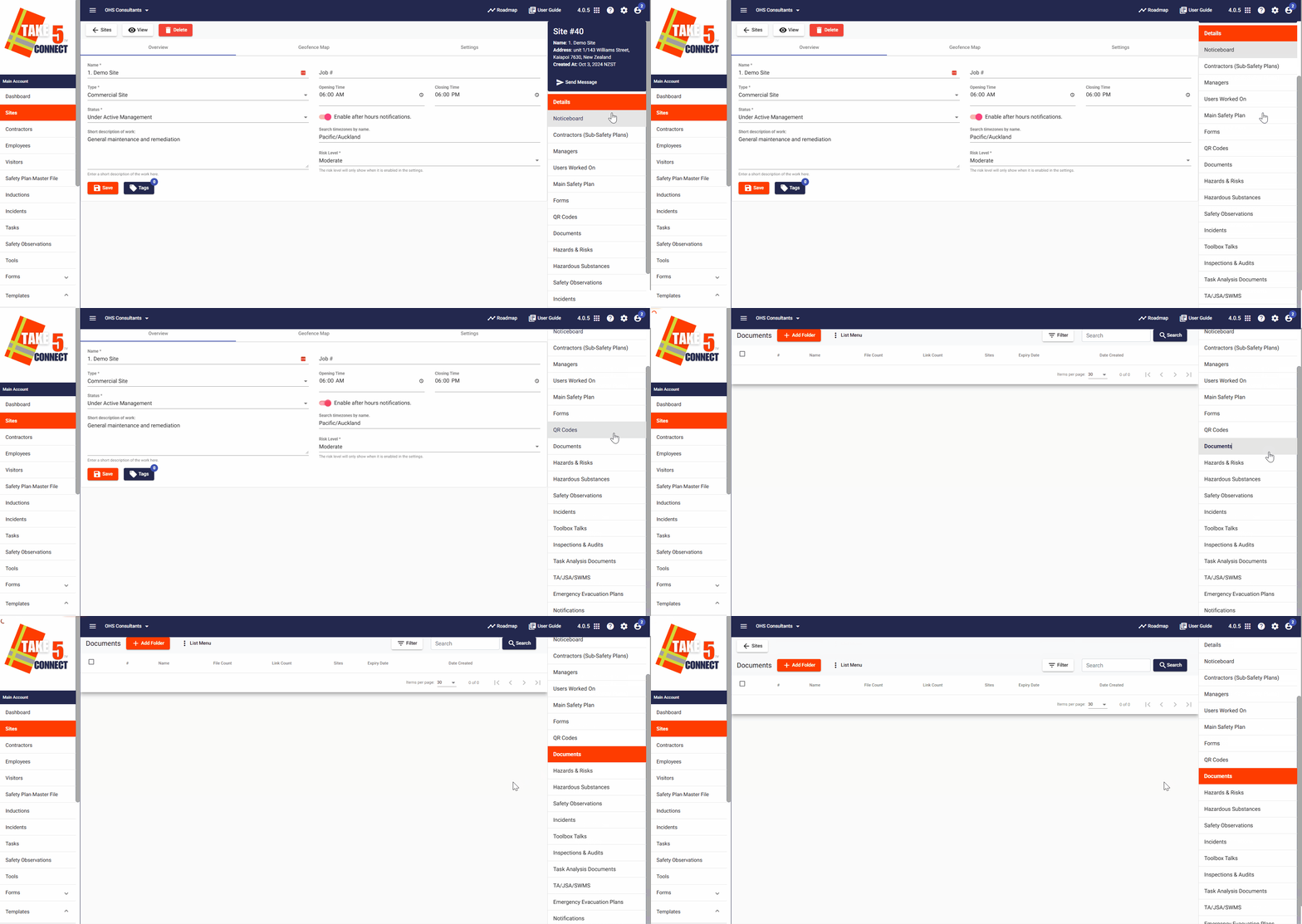
Step 2: 📂 Access the Documents Tab
- Once inside the selected site’s profile, click on the Documents tab.
- Here, you’ll see any previously uploaded documents for this site.
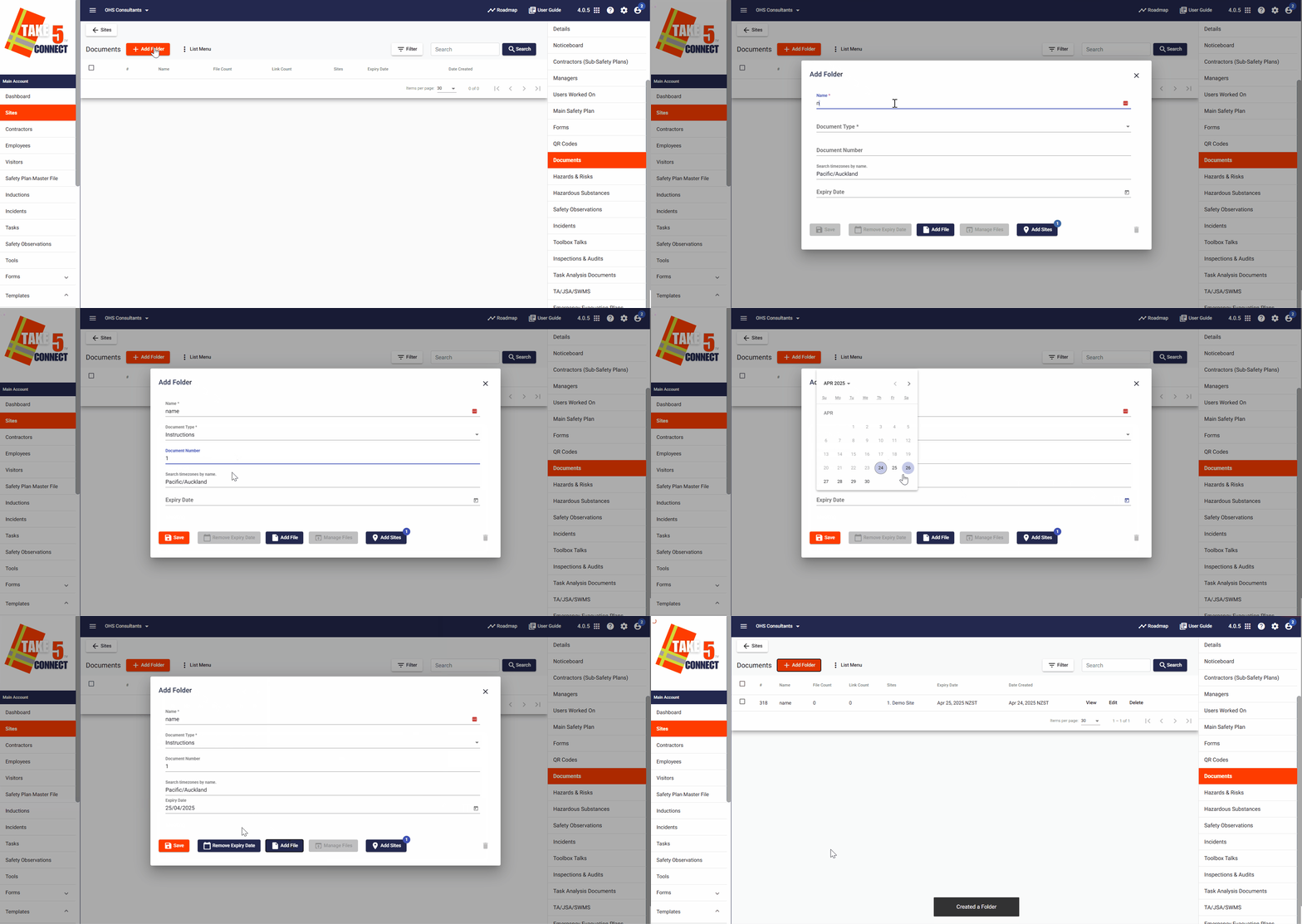
Step 3: 📤 Upload a Document
- Click Add Folder to begin uploading a new file.
- Complete the Add Folder questions:
- Document Title: Give the document a clear, recognizable name.
- Type: Select the type of document (e.g. certificate, manual etc.).
- Number: The number associated with the document
- Add File: Choose the file from your computer (PDF, DOCX, JPEG, etc.).
- Expiry Date (optional): Set an expiration date if the document needs to be reviewed or updated periodically.
- Click Save to upload the document to the site.
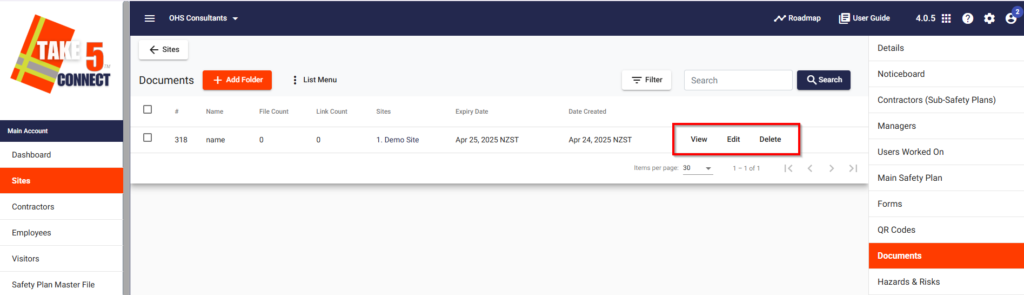
Step 4: 👁️ Viewing and Managing Documents
After uploading, you can:
- View: Click on the document name to open it.
- Edit Details: Click the edit icon to update the title, category, or expiry date.
- Delete: Remove outdated or incorrect documents.
Step 5: 🔗 Visibility to Users
Documents uploaded to a site are automatically visible to:
- Workers and contractors who are assigned to that site
- Users signing in via the Kiosk, Mobile App, or QR Code Check-In
- Admins and managers for quick compliance checks
❓ Troubleshooting
- File not uploading? Make sure the file size and type are supported.
- Can’t find your document? Use the Search or Filter by Category tools in the Documents tab.
- Missing categories? Your admin may need to configure document categories in the system settings.
📞 Need Help?
If you run into any issues while uploading or managing documents, reach out to our support team:
- Email: support@take5connect.com
- Phone (NZ): 0800 582 535